Document templates in Vision App Maker generate documents such as quotes, contracts, invoices or certificates from application data. Templates are designed in App Factory Studio and used in workflows to produce PDF or Word files.
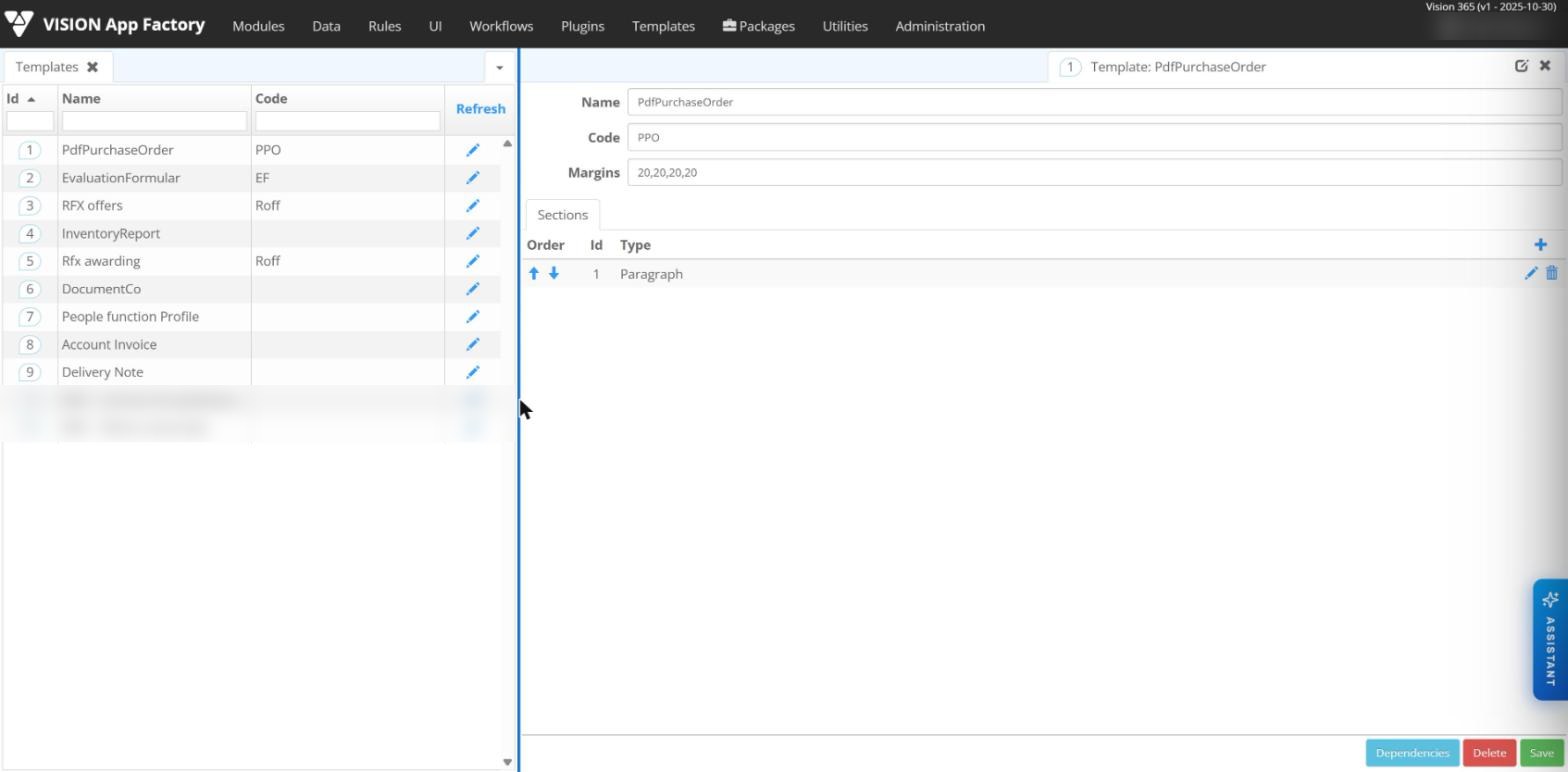
Template structure
Templates are managed in the Templates menu of App Factory Studio. A template is made of three kinds of sections:
- Header;
- Paragraph: a template can have several top-level paragraph sections;
- Footer.
The page orientation is portrait or landscape. Each section has resources for each language, so one template can produce the same document in several languages.
Content of a template
Section content is written in HTML or built with the same editor menu used for views. Templates have no events, unlike views.
A template combines static content, such as text, images and symbols, with dynamic data. Dynamic data comes from the database or from the result of business rules. Rules can also change the behaviour of selected zones of the document, for example to show or hide a paragraph.
Generating documents
Documents are generated inside workflows, based on the data collected up to that point. A workflow step can show the user a generated document for review, and documents can be regenerated when the data changes.
Templates produce PDF documents filled with application data. A generated document can carry a registration number and a QR code.
Plugins connect templates to workflows and rules:
| Plugin | What it does |
|---|---|
| RenderTemplate | Renders a template, given its identifier. Typically used to let the user download a document. |
| SendEmailWithTemplateAttachment | Sends an e-mail with a rendered template as attachment. |
| SendEmailWithTemplateBody | Sends an e-mail whose body is a rendered template. |
| SendEmailWithAttachment, SendEmailWithMultipleAttachments | Send e-mails with one or several existing files attached. |
The DocxToPdf rule operator converts a Word document to PDF. Generated documents can be signed automatically with an electronic seal certificate, without human intervention.
Processing PDF and Office files
Further plugins and rule operators work on generated or uploaded files.
| Task | Plugins and operators |
|---|---|
| Marking PDF files | AddPdfWatermark, AddStampToPDF (stamp with number and date), AddStampAsTextToPdf (text stamp with registration data and approver), AddCommentToPdf, AddExtraPageToPdf |
| QR codes | AddQRCodeToPdf, GetQRCodeFromText |
| PDF information | GetPdfPageNumber |
| Excel output | WriteEntityToExcel, WriteEntityToFormattedExcel, WriteMatrixDataToFormattedExcel |
| Metadata of .docx, .xlsx and .pdf files | GetDocMetadata, GetAllMetadata, SetDocMetadata, DeleteDocMetadata |
| Text extraction | ExtractText, for text in the content or images of PDF, Word and Excel files |
| Storage, versions and archives | CompressBytes, CreateDocumentDeltaPatch, ApplyDocumentDeltaPatch, GetHash, PackFileInArchive |
Document management
Generated and uploaded documents are managed in the platform. Document management features include:
- capture of files and images from scanners, e-mail, bulk import and drag-and-drop upload;
- rules that make specific document types mandatory at a given workflow step;
- barcodes, QR codes and registration numbers printed or applied on documents;
- unlimited metadata fields for classification, indexing, search and filtering;
- automatic OCR for image and PDF files, with full-text search over the extracted text;
- automatic registration, routing or linking to workflows during scanning;
- preview of common file types in the interface;
- a document lifecycle of creation, change, validation, approval, publication and archiving;
- check-out and check-in, with automatic version numbers and version comments;
- version history with restore, duplicate detection by name and content, and delta storage of consecutive versions;
- lossless compression on save and encryption at rest and in transit;
- a unique access link for each document record, and e-mail sending from the archive;
- an activity log of views, edits, deletions, approvals and versions, with notifications on changes;
- archiving by document type and retention period.
Each user has a personal workspace for documents that are not tied to a workflow. Documents are grouped in folders and can be edited, downloaded, viewed by version and described with metadata.
Signing and archiving
Documents can be signed electronically with a qualified certificate, and the original and signed versions are stored together. Plugins also upload documents to an authorized electronic archive, with metadata such as issuer, classification level and retention period. External document repositories such as SharePoint, Alfresco and Liferay are reached through dedicated plugins.