AI checks let users verify a request with instructions written in natural language. A check reads selected request data and attached documents, runs on demand and records every result with a status. AI checks are part of Vision Smart Tasks.
Where checks are used
Checks run inside the business process, in the portal where the request is handled. The AI checks panel opens from a request instance, next to the request form. The user works on the current case and does not have to describe it again to an external chatbot.
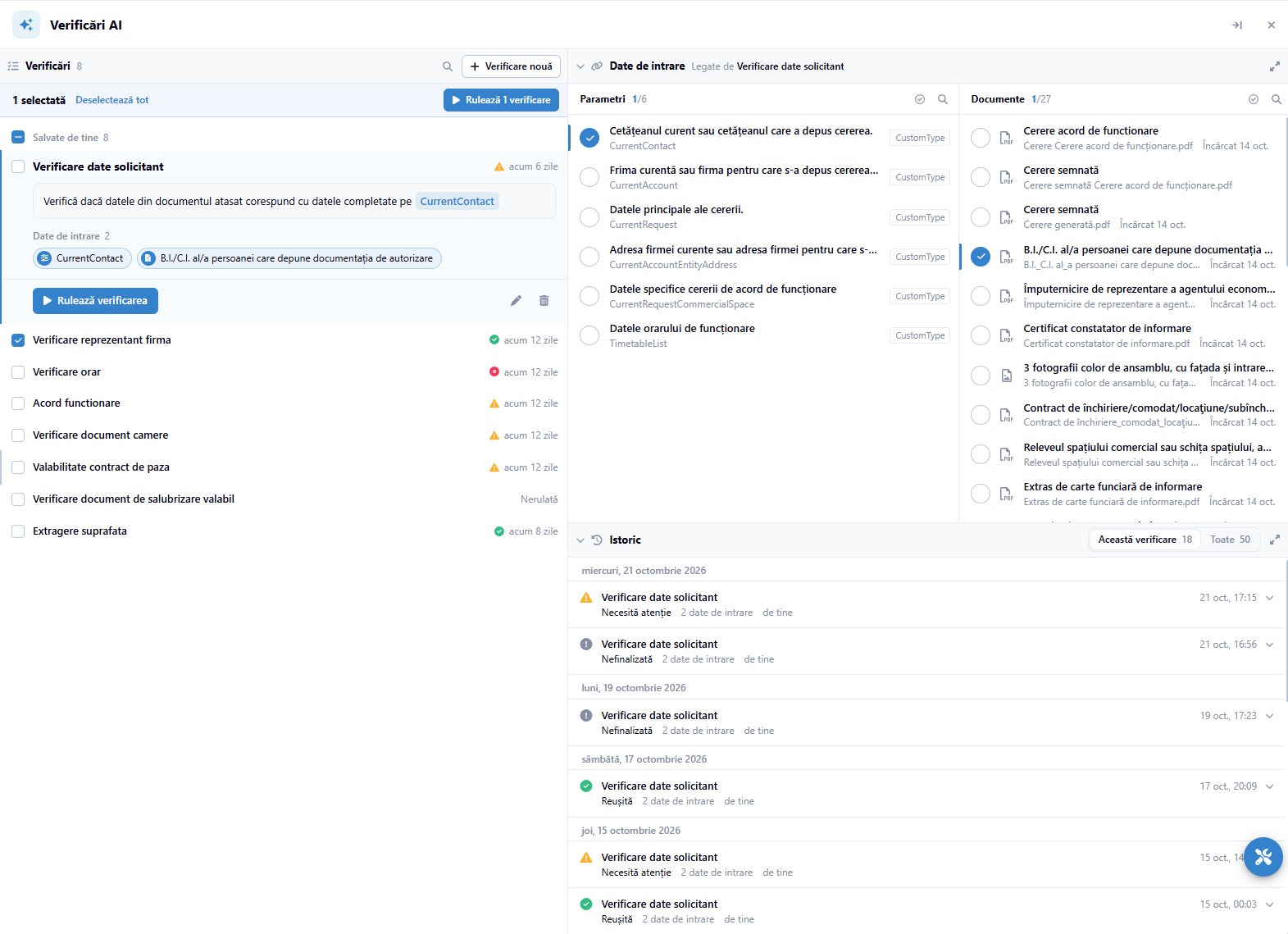
The panel has three areas:
- the list of saved checks, each with its name, the status of its last run and the time of that run;
- the selected check, with its instruction and its input data;
- pickers for the request parameters and attached documents the check uses.
Writing a check
A check is created with the New check button and has a name and an instruction in natural language. An example: "check that the data in the attached document matches the data entered for the applicant". The user then selects the inputs.
| Input | What can be selected |
|---|---|
| Parameters | Typed data objects of the request, such as the applicant, the company, the request details, the address or the schedule |
| Documents | Files attached to the request, such as an ID card, the signed request, a power of attorney, a lease contract, photos or a land registry extract |
The pickers show how many parameters and documents are selected out of those available on the request. A check can be edited or deleted at any time.
Typical checks
- applicant data compared with the identity document;
- the company representative named in the documents;
- opening hours stated in the request;
- presence of an operating approval;
- validity of contracts attached to the request, such as security or sanitation contracts;
- extraction of a value from a document, such as a surface area;
- a registration number on a trade registry certificate compared with the supplier record;
- whether a fiscal certificate is still valid.
Running checks
Checks run on demand. A user runs one check with Run check, or selects several checks and runs them together. Each check reports one of these statuses:
| Status | Meaning |
|---|---|
| Passed | The check completed without findings |
| Needs attention | The check found something a person should look at |
| Not completed | The run did not finish |
| Not run | The check has not been run yet |
Results appear in the panel, where the user is working. The user reviews each result and takes the decision.
History
Every run is recorded in the check history. Each entry shows the date and time, the result status, the number of inputs used and the user who ran it. The history can be filtered to the selected check or show all checks on the request.
Review and reuse
A useful check is saved and stays available the next time the request is opened. Users can correct wrong values and refine an instruction that looks at the wrong part of a document. The user stays part of the process and confirms the outcome.
AI elsewhere in the platform
AI checks build on AI capabilities available across App Maker:
- business rules can use AI operators, which take the name of a model (expert) and a prompt and return the answer;
- a user interface can display the response of an AI operator;
- any workflow step can use responses from the AI component.
AI capabilities are configured from the administration component and can be used in interfaces, in App Factory Studio and in workflows.