User interfaces in Vision App Maker are views configured in App Factory Studio. The same views serve every channel, and messages and notifications keep users informed as they work through a process.
Omnichannel delivery
Configured features can be published to one or more front-end components. Each channel serves a different audience.
| Channel | Audience and use |
|---|---|
| Internal portal | Employees and administrators. Holds all configured features plus the standard administration features. |
| External portal | Customers, citizens and partners: profile, requests, payments, documents. It does not give direct access to the database. |
| Mobile app | Any configured feature on smartphones. |
| Info kiosk | Self-service terminals with ID card scanning, A4 document scanning and printing of receipts or response documents. |
| Public API | Configured features exposed to other systems. |
A single workflow can span several channels. For example, a citizen submits a request in the external portal and staff process it in the internal portal. The citizen adds clarifications at an info kiosk and receives the answer in the external portal.
Views
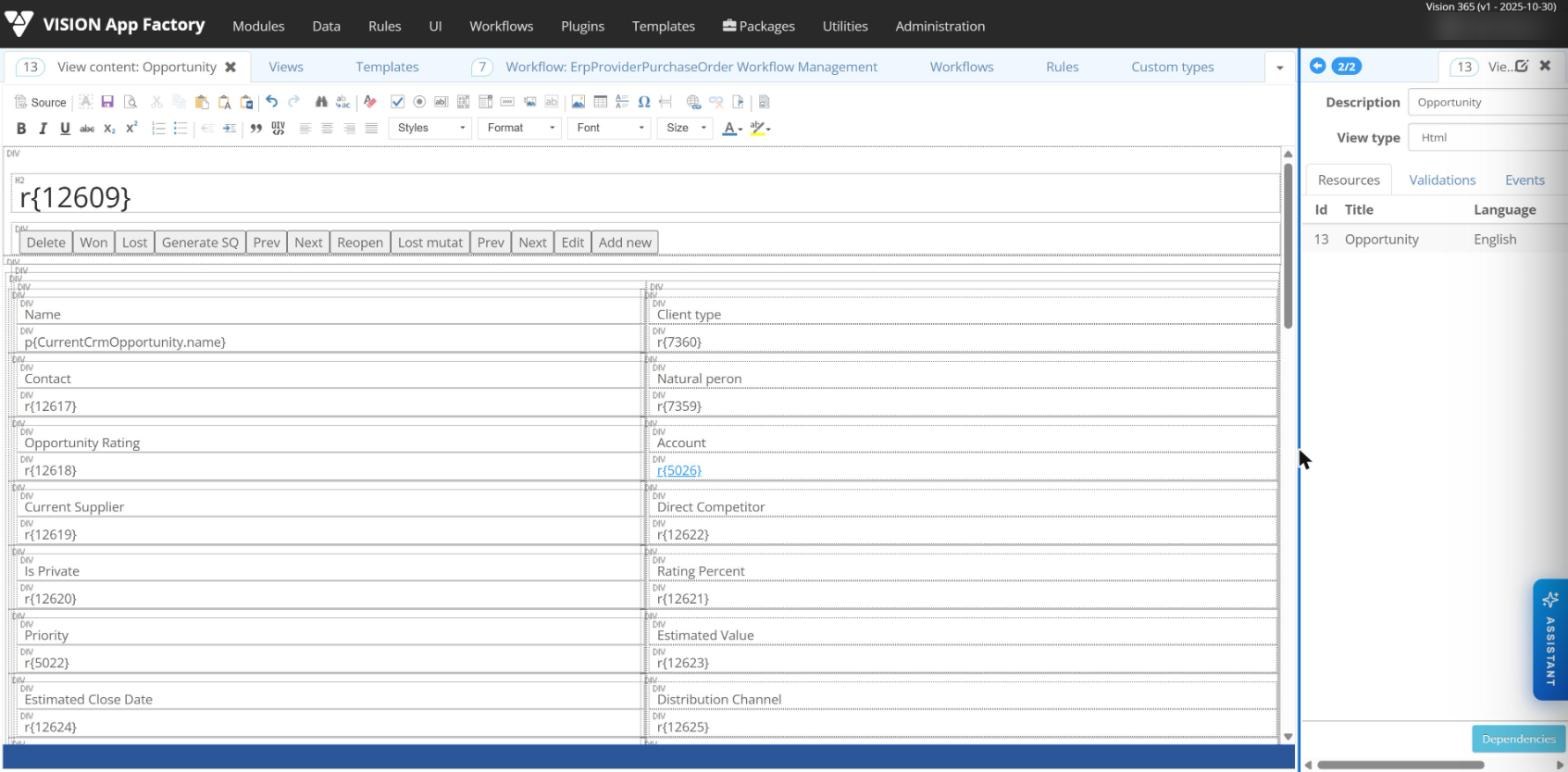
A view is the screen that the user sees. A view is of type Custom or HTML, and it can be built with the visual editor or directly in HTML. Each view has resources, validations and events.
- Resources hold the content of the view, one per application language.
- Views accept CSS styles, JavaScript scripts and Bootstrap 4 classes.
- View content can display parameter values and the results of business rules.
- A view can start from a predefined template.
Element settings
Each HTML element in a view has settings that link it to the data model and to rules. They are opened from the Element tools menu.
| Setting | Purpose |
|---|---|
| Parameter | The domain parameter bound to the field. |
| Control type | Combo box, date picker, time picker, radio (horizontal or vertical), repeater for lists, upload file, download file, nested view, popup opener or navigation control. |
| Control metadata | The button behaviour for a navigation control, or the view to open for a nested view or popup. |
| Availability | Visible: Yes, No or Dynamic (decided by a rule). |
| Readonly | Read-only: Yes, No or Dynamic. |
| Mandatory | Mandatory: Yes, No or Dynamic. |
| Event name | The view event that runs when the element is used. |
| List of values | Options for a select field, from a plugin, a rule or a list of values. |
| Submit, Class, Style | Whether the element submits the form, its CSS classes and inline style. |
A Search tab finds elements that use a given rule, parameter, event or list of values.
Validations
Validations check field values and show a message when a check fails. A before validation runs when the module is initialized; an after validation runs after an event. Each validation has a rule, an optional availability condition and the message to display.
Events
Events define what happens on the screen. Custom events are bound to buttons and other elements. System events run when the user enters a view, leaves it, or returns to it, for example after closing a pop-up. Each event has an availability condition, a binding that defines what it does, and an option to run only after all validations pass.
Views in workflows
Views are attached to workflow activities. Each attached view is editable (Modify) or read-only (ReadOnly), and can be shown only under conditions. An activity with several views has a navigation menu, which can be disabled.
Interface capabilities
- Responsive layouts for desktop, tablet and mobile, with single-page navigation.
- Conditional visibility, mandatory and editable fields depending on context.
- Dynamic elements generated at runtime when conditions are met.
- Wizard-style navigation through process steps.
- File upload with type, size and extension checks, and PDF or image previews.
- Interactive maps, dashboards with widgets, KPIs, tables and charts.
- Display of responses returned by AI operators.
- Translatable labels and messages; users switch the interface language.
Themes and standards
The portal ships with three themes: Light, Dark and Sapphire. Logo, colours, fonts and favicon can be customized, and white-labeling is supported. The portal follows the applicable WCAG 2.0 level A and AA accessibility criteria and W3C web standards. It supports Microdata markup and editable SEO metadata.
Messages
Messages are texts shown to users from validations and rules. There are four types: Warning, Error, Info and Custom. Each message has resources per language, so users receive it in their own language.
Notifications
Notifications inform users about tasks, status changes and errors.
- In the portal: badges and messages, generated automatically or on demand.
- E-mail, SMS and in-app: sent from workflows, including e-mails with templates, attachments or meeting invitations.
- Rule-based: notifications generated automatically according to configured rules.
- Deadlines: e-mail notifications and alerts when a deadline is reached.
- Scheduled tasks: tasks scheduled by the platform appear in the user's work list.
The external portal lists all notifications a user has received. Users filter them by category (e-mail, SMS, application) and by status (read or unread).